How to Send an E-Invoice (XRechnung or ZUGFeRD) With Inkvoice
This guide walks through sending a German e-invoice with Inkvoice, from the first setting to the email in your customer’s inbox. It takes about ten minutes the first time. After that, an e-invoice is one click on top of the invoice you would write anyway.
You need Inkvoice 0.3.7 or later (self-hosted) or Inkvoice Cloud, and, to send by email, a working email setup. The screenshots use the English interface; Inkvoice also runs in German.
1. Turn on E-Rechnung
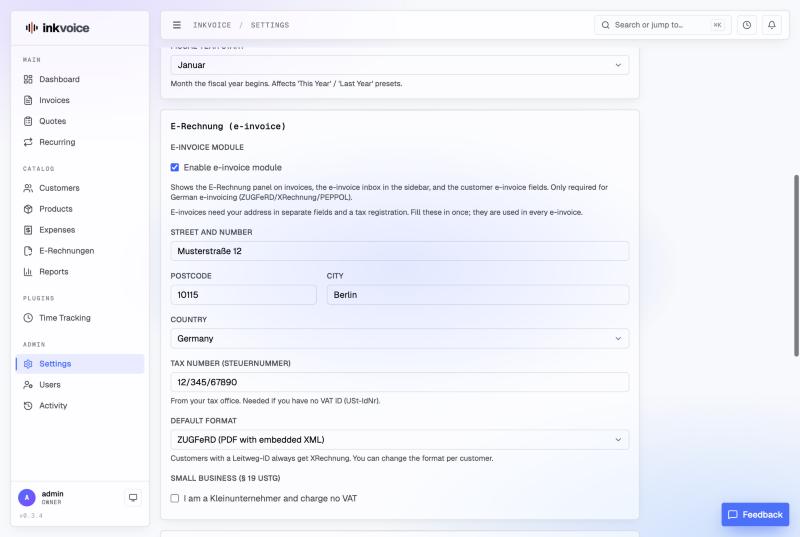
Open Settings → General and tick Enable e-invoice module. More fields appear, because an e-invoice needs a few things a printed invoice does not:
- your street, postcode, city and country as separate fields (the free-text address stays for printed invoices);
- your tax number (Steuernummer), needed if you have no VAT ID;
- the default format: ZUGFeRD for business customers, XRechnung if your customers ask for it;
- the Kleinunternehmer switch, if you charge no VAT under § 19 UStG.
2. Complete your business details
Under Settings → Business, add your email, phone number, Tax ID (your VAT ID, the USt-IdNr.) and IBAN with BIC. The IBAN becomes the payment instructions in the e-invoice. XRechnung requires the phone number and the email address of the seller; ZUGFeRD does not, but they do no harm.
3. Set up your VAT rates
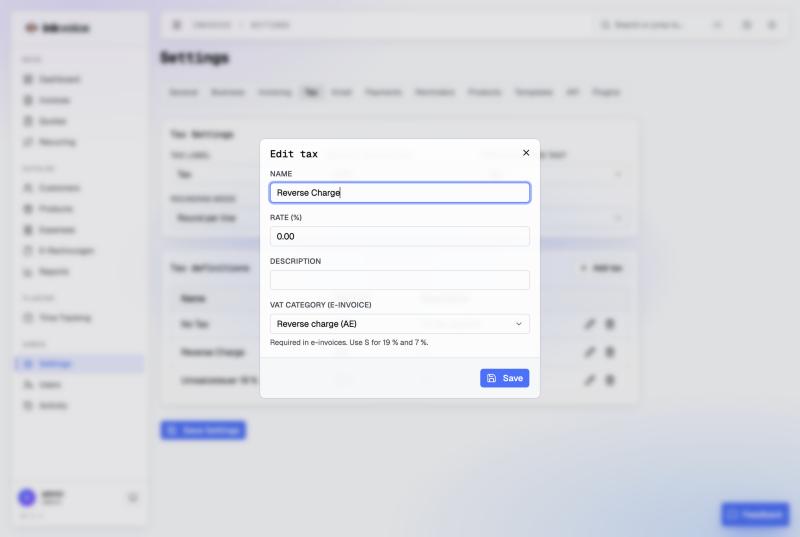
Under Settings → Tax, create the rates you use, for example 19 % and 7 %. With e-invoicing on, each rate has a VAT category. Use S for both 19 % and 7 %. For reverse charge to business customers in other EU countries (§ 13b UStG), create a 0 % rate with the category Reverse charge (AE); Inkvoice then adds the required note and exemption reason. For intra-EU supplies of goods, use a 0 % rate with the category Intra-EU supply of goods (K): that e-invoice needs the service date and both VAT IDs, and names the customer’s address as the delivery address.
4. Add the customer
Give the customer a postcode, city and country, and their VAT ID if they are a business. In the customer’s e-invoice section you can choose a format just for them. A public authority gives you a Leitweg-ID: enter it, and that customer always gets an XRechnung addressed to it.
5. Write the invoice and create the e-invoice
Write the invoice as usual: lines, VAT rates, a discount if you give one. Inkvoice calculates the VAT on the discounted amount, as the standard requires. Set the service date, the date of supply that German invoices must state: one date, or a period with Use a period instead. Inkvoice prints it on the invoice and sends it in the e-invoice.
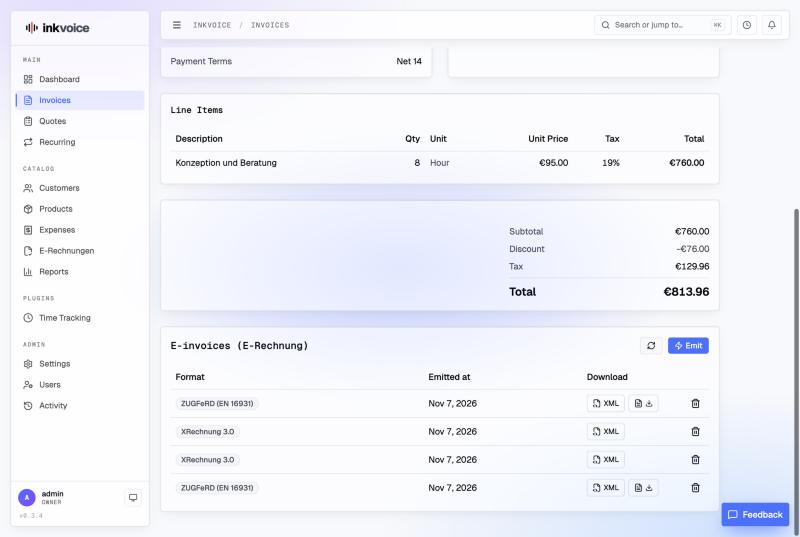
An e-invoice needs the invoice’s final number, so mark the invoice as sent (or send it, see step 6). Then use Create in the E-invoices (E-Rechnung) panel at the bottom of the invoice. If something is missing, the panel lists it in your language, for example that XRechnung needs your phone number. Each created e-invoice stays listed with its XML, and for ZUGFeRD the PDF, to download.
6. Send it
Click Send. With e-invoicing on, Inkvoice creates the e-invoice and attaches it to the email: the ZUGFeRD PDF, or the XRechnung XML for XRechnung customers. If the e-invoice still misses something, the send dialog lists it before the email goes out. You can turn the attachment off for a single email under Advanced.
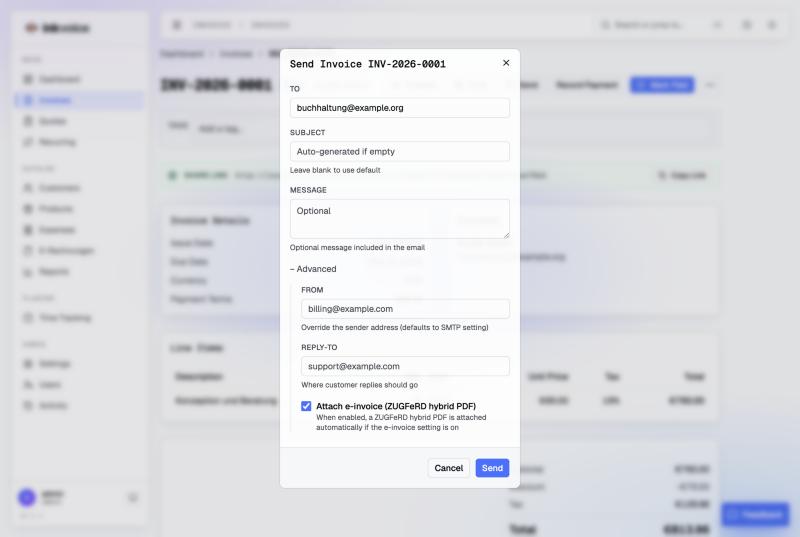
That is all your customer needs. In Germany the law prescribes no channel, so an email is fine, and no platform or report to the tax office is currently required.
7. Check the file yourself (optional)
You don’t have to take our word for it. The official KoSIT validator with the XRechnung configuration checks any XRechnung or ZUGFeRD XML and writes a report. We run it on 27 sample invoices on every change to Inkvoice’s e-invoice code; the sample files and reports are public, and so is the check itself.
What is not there yet
- A delivery address other than the customer’s: for an intra-EU supply of goods, the e-invoice always names the customer’s address.
If you are not sure which format to send, read XRechnung vs ZUGFeRD. For the deadlines, see Germany’s e-invoicing mandate.